VPN Kill Switch: What It Is and How to Test It
Wondering what a VPN kill switch does? Learn how it works, when to turn it on, and how to test it yourself in five minutes with a simple IP check.
A kill switch is a feature that instantly cuts your internet access if your secure connection drops. Without one, your phone or laptop quietly falls back to the regular connection. Websites see your real IP address, and your internet provider sees your requests. You won't even know it happened: the icon in the corner of your screen may look normal for another second or two.
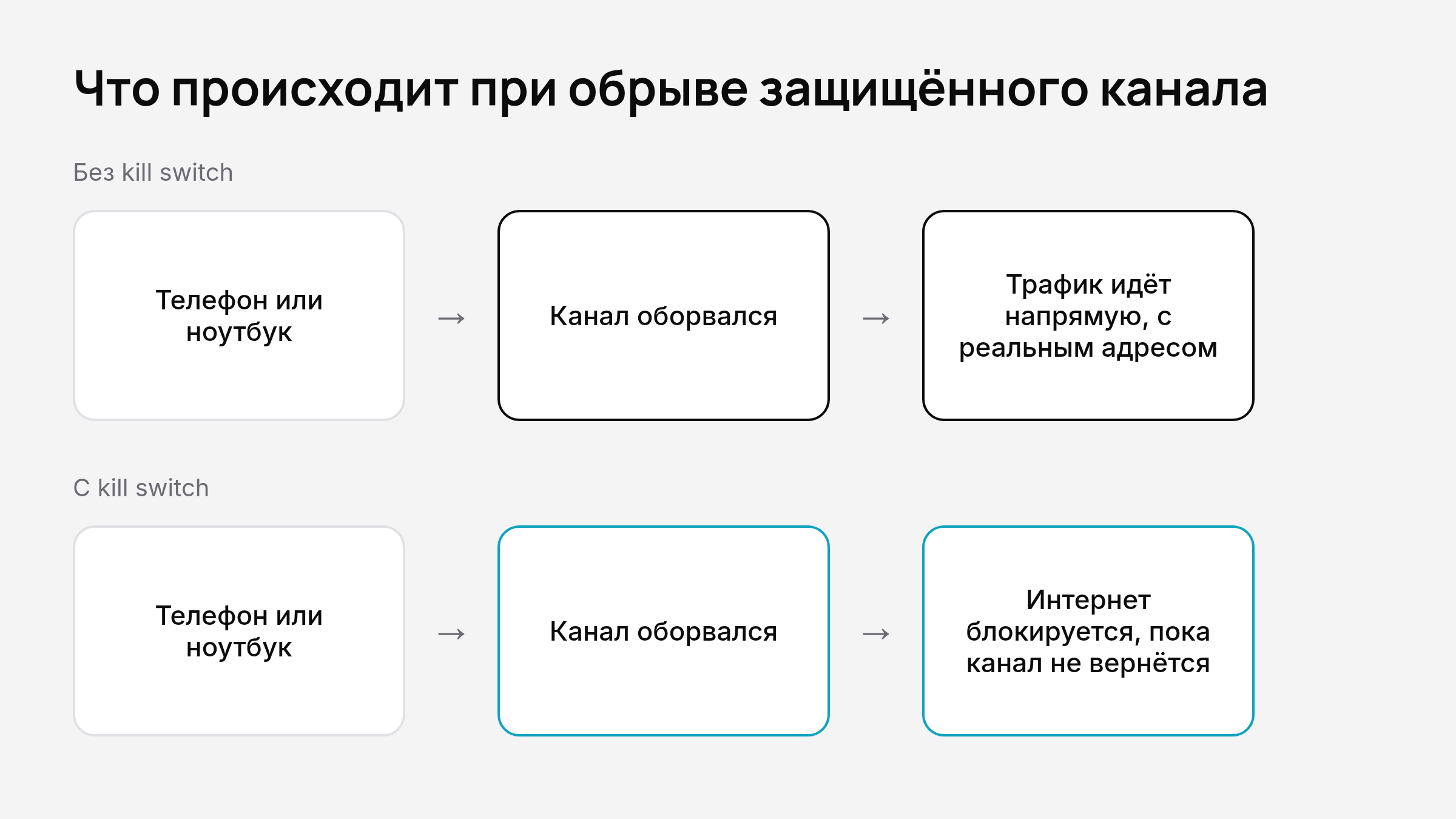
Why do you need a kill switch?
A secure connection doesn't last forever. It drops when your phone switches from Wi-Fi to cellular, when your router reboots, when the signal dips on the subway, or when your laptop wakes from sleep. During those seconds your apps keep working: a messenger sends a message, the browser finishes loading a page, a banking app refreshes your data. All of it goes out unprotected.
It matters most in three situations:
- Public Wi-Fi. In a café, hotel, or airport you don't control the network, and every second without encryption means exposed traffic. We covered the risks in our guide to staying safe on public Wi-Fi in cafés, hotels, and airports.
- Handling personal data. Email, banking, documents: leaking your address and requests at the moment of a drop is exactly what you were trying to prevent.
- Background downloads. Torrent clients, cloud sync, and updates won't wait for you to notice the drop.
How does a kill switch work?
There are two types, and the difference matters.
System-level (strict). The rule is enforced by the operating system: until the secure connection is up, all outgoing traffic is blocked. This mode survives even a crash of the app itself. It is the most reliable option.
App-level. The app monitors the connection and, if it drops, closes selected programs or cuts the network. It's more convenient, but if the app freezes or the system shuts it down, the protection disappears with it.
| Feature | System-level | App-level |
|---|---|---|
| Works if the app crashes | Yes | No |
| Protects all programs | Yes | Depends on settings |
| Risk of losing internet with no explanation | Higher | Lower |
| Best for | Public networks, sensitive work | Everyday use |
Does your app have a kill switch?
The feature goes by different names: "Kill Switch," "Block traffic if connection drops," "Always-on," "Block connections without VPN." Look for it in your app's settings, usually under connection or security. Support and depth vary by platform: on iPhone and iPad the system limits what an app can do, Android has a built-in always-on setting, and on Windows and Mac a lot depends on the client.
If you can't find the setting, don't assume it doesn't exist. It may be named differently or unavailable on your platform. In that case, ask the service's support team rather than guessing. For other criteria worth checking, see our article on seven signs of a trustworthy privacy service.
How can you test that your kill switch actually works?
Don't trust a checkbox in the settings; test it yourself. You'll need any website that shows your public IP address, and about five minutes.
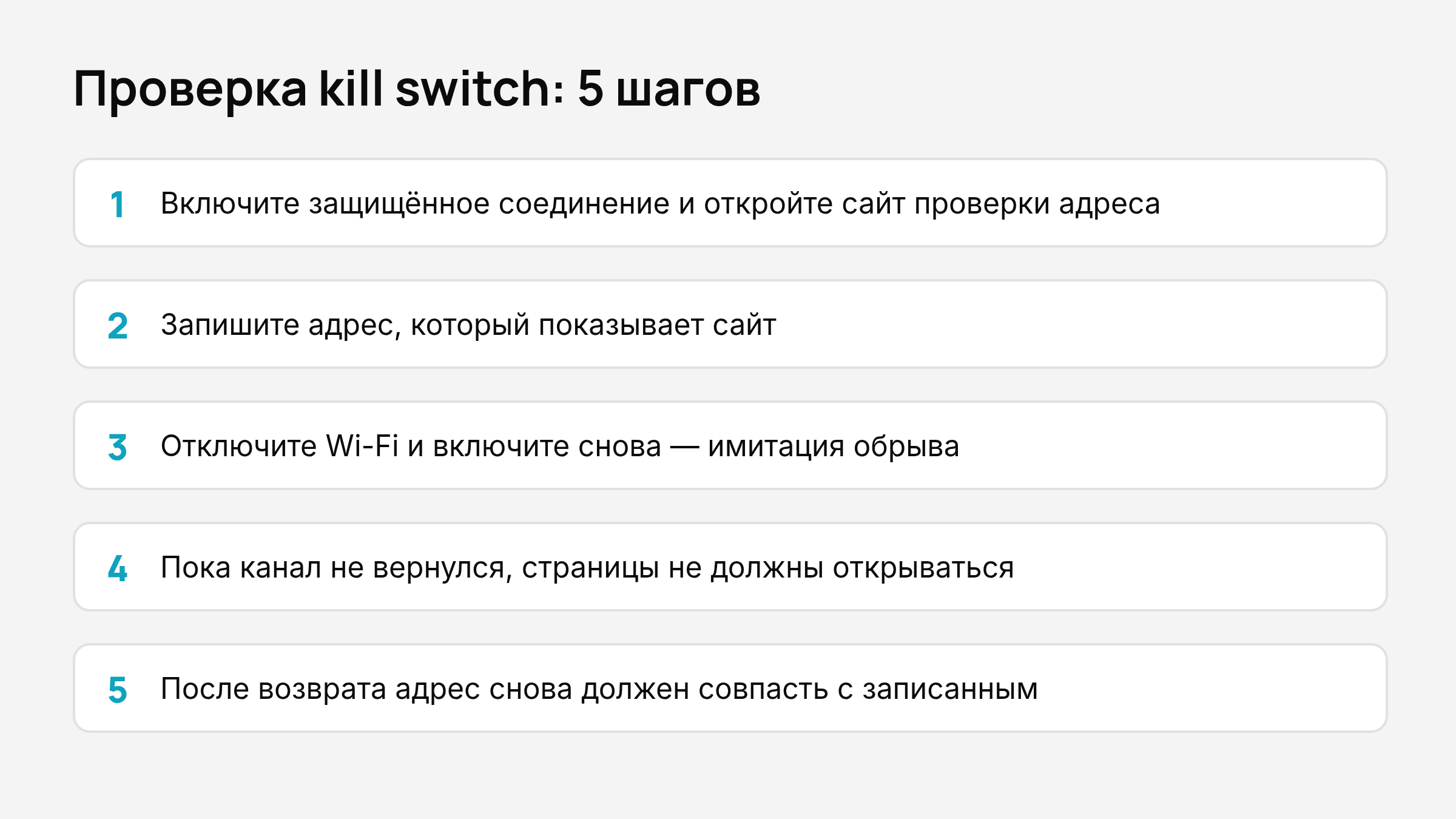
- Turn on your secure connection and open an IP-checking website. Make sure it shows the server's address, not your home one.
- Write down that address or take a screenshot.
- Simulate a drop: turn Wi-Fi off and right back on, or switch airplane mode on for a second. On a computer you can unplug and replug the network cable.
- While the secure connection is still reconnecting, try opening any web page. If the kill switch works, pages won't load or loading will hang.
- Once the connection is back, refresh the IP-checking site. The address should match the one you wrote down.
If pages opened at step 4 and the check showed your real address, the feature either didn't trigger or is turned off. Repeat the test with the setting enabled, and if nothing changes, contact support.
To make the test fair, repeat it in two conditions: on your home Wi-Fi and on a cellular network. An app often behaves differently when the network changes.
What a kill switch won't do
It's not a substitute for the rest of your security habits. It won't protect you from phishing, replace two-factor authentication, or hide what you voluntarily give to websites. If you're curious what your internet provider can see and what you can hide from it, read about online privacy and what your ISP knows. And for your important accounts, add an extra layer with our guide to setting up two-factor authentication.
One more caveat: frequent drops aren't a reason to simply rely on the emergency cutoff. They're a signal to look for the cause. An unstable connection usually comes down to a weak router, a congested network, or a poor server choice. Our guide on how to check your connection speed and stability explains how to diagnose it.
Should you keep the kill switch on all the time?
A practical approach:
- On public networks and when working with sensitive data, use the strict mode.
- At home on a stable connection, app-level mode is enough, or you can skip it if you're fine with brief gaps.
- On cellular, where the connection often jumps around, turn it on, but expect the internet to occasionally "disappear" for a couple of seconds. That's not a malfunction; it's the feature doing its job.
If you're choosing a service and want to know how many devices you'll need to cover and which plan fits, check the Pricing section for device limits and terms.
The short version
A kill switch exists so that a one-second drop doesn't turn into a leak. Turn it on in your settings, test it with the five steps above, and repeat the test after major app or system updates, since settings sometimes get reset.