Work VPN and Karing on Windows: why connections drop and how to fix it
If Codex and ChatGPT keep dropping or internal sites won't open while your work VPN and Karing are both on in Windows, the cause is usually Karing's mode and where the work VPN's own connection goes. How to check and what to change.
A typical picture: Karing is on in Windows, and a work VPN (OpenVPN, WireGuard or a corporate client) is needed for the company network. Each works fine on its own. Together, a long Codex task breaks halfway, ChatGPT shows "stream disconnected before completion", internal sites won't open, the work VPN reconnects by itself. The servers are fine and speed tests look normal.
The cause is usually the same: the two tunnels get in each other's way. On Windows it's easier to fix than on a Mac.
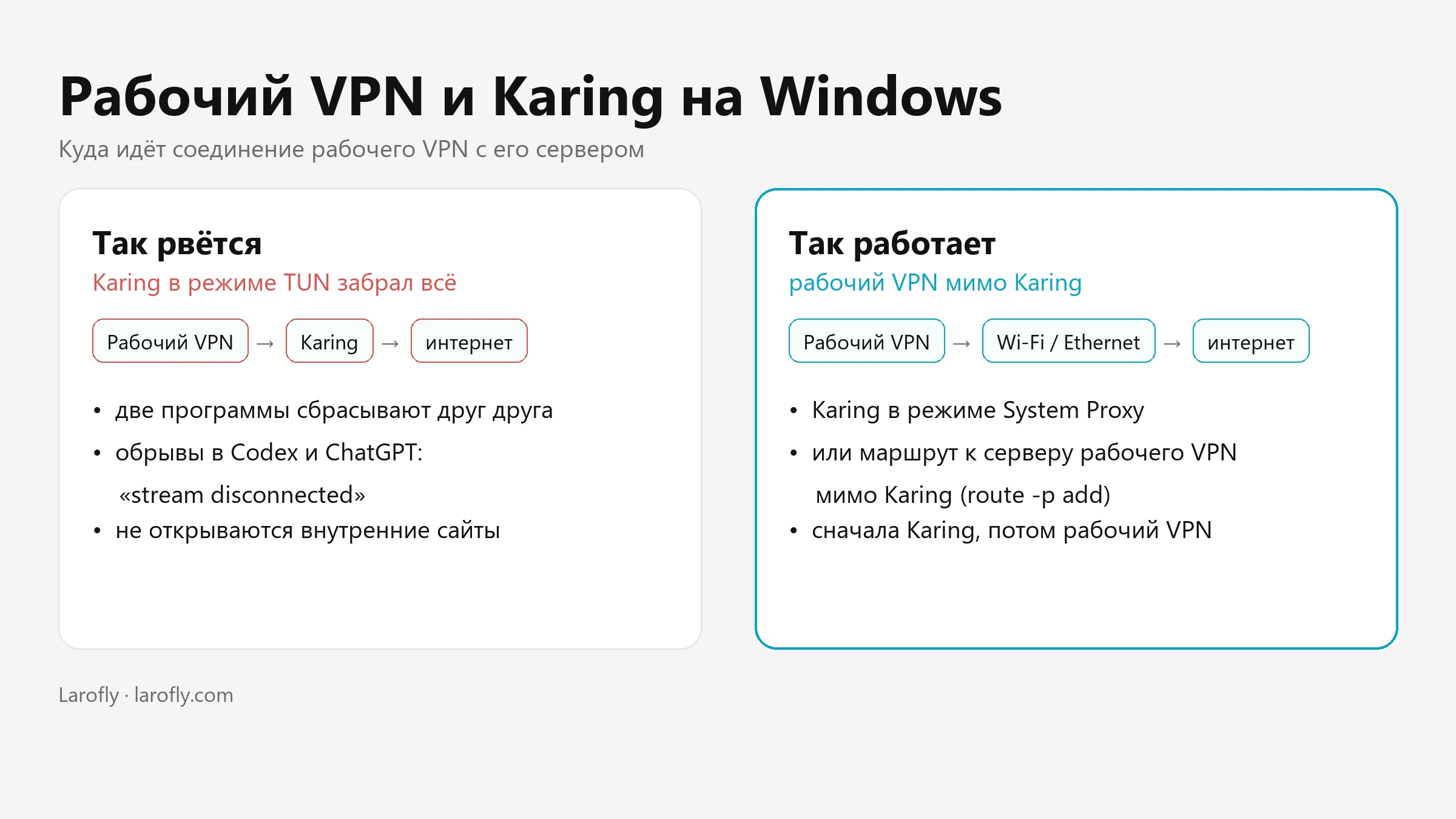
Why do two VPNs get in each other's way?
Karing on Windows has two modes:
| Mode | What it does | Interferes with the work VPN? |
|---|---|---|
| System Proxy | The browser and apps that respect the system proxy go through Karing | Almost never: the work VPN reaches its server on its own, bypassing Karing |
| TUN Mode | Karing takes over all of the computer's traffic | Yes: the work VPN's connection to its server also goes into Karing |
In TUN mode you get a VPN inside a VPN. As soon as Karing reconnects (for example, when it refreshes its subscription), the work VPN loses its server and reconnects too. Karing sees the network change and resets its connections, and the loop continues. Every reset kills whatever was open: a Codex answer, a download, a call.
Step 1. Switch Karing to System Proxy mode
This is the simplest fix. Turn Karing off, choose System Proxy instead of TUN Mode in its settings, and turn it back on. Then reconnect the work VPN.
In System Proxy mode the work VPN and Karing don't share the same traffic, so they have nothing to reset each other over.
One thing to keep in mind: apps that ignore the system proxy will bypass Karing. Most often these are command-line tools and some games. Browsers, ChatGPT and most regular apps respect the proxy. If an app you need doesn't work without TUN, go to step 2.
Step 2. If you need TUN: check where the work VPN goes
You need the work VPN server's address. For OpenVPN it's in the .ovpn settings file, on the remote line, for example remote 203.0.113.10 1194. The files usually live in the OpenVPN\config folder in your user folder or in C:\Program Files\OpenVPN\config.
Open PowerShell (Start → type "PowerShell") and run:
```
Find-NetRoute -RemoteIPAddress 203.0.113.10 | Select-Object InterfaceAlias, NextHop
```
Replace 203.0.113.10 with your server's address. Look at InterfaceAlias:
| What it shows | What it means |
|---|---|
Wi-Fi or Ethernet | The work VPN goes directly — this is what you want |
Karing's adapter (usually has tun in its name) | The work VPN goes inside Karing — that's where the drops come from |
Step 3. Route the work VPN around Karing
First find your router's address: run ipconfig in Command Prompt and look for the "Default Gateway" line under Wi-Fi or Ethernet, for example 192.168.1.1.
Then open Command Prompt as administrator (Start → "cmd" → right-click → "Run as administrator") and add a route:
```
route -p add 203.0.113.10 mask 255.255.255.255 192.168.1.1
```
The first address is the work VPN server, the last is your router. The -p switch makes the route persistent: unlike on a Mac, on Windows it survives a restart, so you don't have to add it every day.
Then run Find-NetRoute from step 2 again — it should show Wi-Fi or Ethernet.
Important: the route is tied to your router. If you work from another network (office, café, phone hotspot), the router there has a different address and the route stops working. Remove it with route delete 203.0.113.10 and add it again with the new gateway address.
Step 4. Keep the order
Karing first, wait until it connects, then the work VPN. If Karing reconnected on its own (after a subscription refresh, sleep or a Wi-Fi change), disconnect and reconnect the work VPN. Leave Karing alone.
Two more common causes
The work VPN uses UDP. UDP-based protocols such as Hysteria don't get along well with a UDP work OpenVPN: the tunnel comes up, but internal sites hang while loading. Pick TCP servers in Karing. The work VPN's protocol is on the proto line of the .ovpn file.
Internal sites won't open, only in TUN mode. Turn off FakeIP: in Karing, Settings → DNS. Otherwise the browser gets a placeholder address like 198.18.x.x from Karing, and the request to the internal site goes into Karing instead of the work VPN. Check: ping jira.your-company should not show 198.18.
What if the work VPN routes all traffic through itself?
Then it's the other way round: Karing rides inside the work VPN. Add one line to the .ovpn for each server Karing connects to:
```
route <server address> 255.255.255.255 net_gateway
```
Support can tell you the server addresses. If your company's administrator issues the .ovpn, agree on these lines with them.
Quick checklist
- Karing mode — System Proxy. Use TUN only if you can't do without it.
- In TUN mode,
Find-NetRouteto the work VPN server shows Wi-Fi or Ethernet. If not —route -p add. - Karing first, then the work VPN.
- Work VPN on UDP — TCP servers in Karing. Internal sites won't open — turn off FakeIP.
If the drops continue, send support the time of the drop, the Karing mode and the Find-NetRoute output for the work VPN server.
The same setup for a Mac is described in work VPN and Karing on a Mac. To install Karing on Windows from scratch, follow the guide to a secure connection on your computer and phone. If the connection doesn't drop but is slow, see how to check connection speed and stability.