Work VPN and Karing on the same Mac: why connections drop and how to fix it
If Codex and ChatGPT keep dropping or internal sites won't open while your work VPN and Karing are both on, the cause is almost always where the work VPN's own connection goes. Step-by-step setup and a one-command check.
A common setup: Karing runs on the Mac all the time, and a work VPN (usually OpenVPN) is needed to reach the company network. Each works fine on its own. Together, strange things happen: a long Codex task breaks halfway, ChatGPT shows "stream disconnected before completion", the internal Jira won't load, the work VPN keeps reconnecting by itself. Meanwhile the servers are fine and speed tests look normal.
The cause is almost always the same, and it takes a few minutes to find and fix.
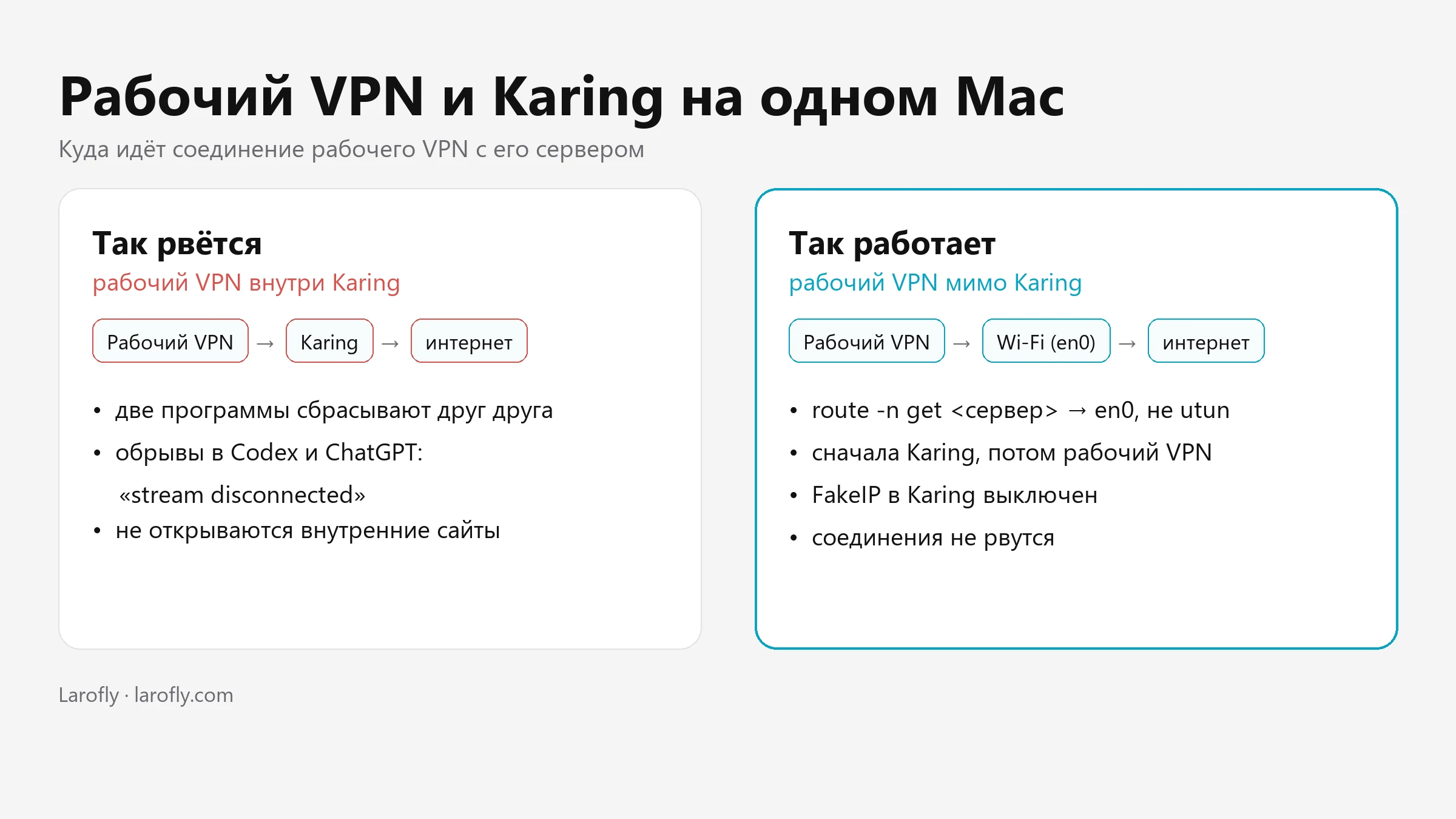
Why do two VPNs get in each other's way?
On a Mac, Karing works as a system tunnel: it takes over all of the computer's traffic. All of it, including the work VPN's own connection to its server. You end up with a VPN inside a VPN: the work tunnel rides through Karing.
While everything is stable, you barely notice. But as soon as Karing reconnects (for example, when it refreshes its subscription), the work VPN loses its server and reconnects. Karing sees that the network settings changed and resets its own connections. The work VPN reconnects again, and the loop continues. Every reset kills whatever was open: a Codex answer, a download, a call.
The right setup is different: the work VPN reaches its server directly over Wi-Fi or Ethernet, bypassing Karing. Then the two tunnels sit side by side and don't touch each other.
How do you check where the work VPN goes?
You need the address of the work VPN server. It's in the .ovpn settings file, on the remote line, for example remote 203.0.113.10 1194. You can also find it in the work VPN app's log.
Open Terminal (Spotlight: ⌘ + Space, type "Terminal") and run:
```
route -n get 203.0.113.10
```
Replace 203.0.113.10 with your server's address. Look at the interface line:
| What interface shows | What it means |
|---|---|
en0 (or en1) | The work VPN goes directly over Wi-Fi or Ethernet — this is what you want |
utun with a number (utun5 etc.) | The work VPN goes inside Karing's tunnel — that's where the drops come from |
How do you set it up so it doesn't drop?
1. Keep the order: Karing first, then the work VPN. When the work VPN connects, it adds a route to its own server. If Karing connects later, it can take that route over. So turn Karing on first, wait until it's connected, and only then connect the work VPN.
2. If Karing reconnected, reconnect the work VPN. Karing sometimes reconnects on its own, for example after a subscription refresh or a network change. After that, disconnect the work VPN and connect it again. Leave Karing alone.
3. Check the route again. Run route -n get with the server address. If interface still shows utun, add the route by hand. First find your router's address:
```
route -n get default
```
You need the gateway line, for example 192.168.1.1. Then:
```
sudo route -n add -host 203.0.113.10 192.168.1.1
```
The first address is the work VPN server, the second is your router. The Mac will ask for your account password. After that, route -n get should show en0. This route lasts until the Mac restarts or the network changes; then run the command again.
4. If the work VPN uses UDP, pick TCP servers in Karing. UDP-based protocols such as Hysteria don't get along well with a UDP work OpenVPN: the tunnel comes up, but internal sites hang while loading. The work VPN's protocol is on the proto line of the .ovpn file.
5. If internal sites won't open, turn off FakeIP. In Karing: Settings → DNS → turn off FakeIP. With FakeIP on, the browser gets a placeholder address like 198.18.x.x from Karing, and the request to the internal site goes into Karing instead of the work VPN. Easy to check: ping -c 1 jira.your-company should not show 198.18.
What if the work VPN routes all traffic through itself?
The opposite also happens: the work VPN is set to take all of the computer's traffic, and then Karing ends up riding inside it. The fix mirrors the one above: add one line to the .ovpn for each server Karing connects to:
```
route <server address> 255.255.255.255 net_gateway
```
Support can tell you the server addresses. If your company's administrator issues and updates the .ovpn, agree on these lines with them.
Quick checklist
- Karing first, then the work VPN. Karing reconnected — reconnect the work VPN.
route -n get <work VPN server>showsen0, notutun.- Work VPN on UDP — TCP servers in Karing.
- Internal sites won't open — turn off FakeIP.
If the drops continue, send support the time of the drop and the route -n get output for the work VPN server. With that, the cause is usually visible right away.
If the connection doesn't drop but is slow, see our article on how to check connection speed and stability. Setting up Karing from scratch is covered in the guide to a secure connection on your computer and phone. We compared protocols in WireGuard vs OpenVPN.
The same setup for Windows is in work VPN and Karing on Windows.